tl; dr
hugo new post/how-to-create-new-posts-with-hugo.en.md
We can create new posts by creating new .md files in the appropriate Hugo blog repository directory, but it’s easier to use the hugo new command while already in the blog repository.
Command to Create a New Post
We can create a new post with the Hugo command like this:
hugo new content/path/to/post/post-title.md
For my blog structure, it would be:
hugo new content/post/how-to-create-new-posts-with-hugo.en.md
But we can also shorten it:
hugo new post/how-to-create-new-posts-with-hugo.en.md
This creates a new blog file with frontmatter fields.
We can check the post content with the cat command:
cat content/post/how-to-create-new-posts-with-hugo.en.md
New Post Template
The new post creation template is defined in the archetypes/default.md file. That’s where the frontmatter logic is stored, though we can define whatever we want. Mine looks like this:
---
title: "{{ replace .Name "-" " " | title }}"
date: {{ .Date }}
author:
tags: []
draft: true
---
As we can see, the template creates a new draft, so this post won’t be published until we turn off the draft field.
My frontmatter looks like this:
---
title: "How To Create New Posts With Hugo"
date: 2026-03-14T21:30:47+01:00
author: Ąžuolas Krušna
tags: []
draft: true
---
Preview Using a Local Server
When running the Hugo server locally, we can add the -D parameter, which will generate posts from drafts as well:
hugo serve -D
Adding Content
We can add content by opening this file in our chosen editor:
zed content/post/how-to-create-new-posts-with-hugo.en.md
nvim content/post/how-to-create-new-posts-with-hugo.en.md
subl content/post/how-to-create-new-posts-with-hugo.en.md
code content/post/how-to-create-new-posts-with-hugo.en.md
# etc.
We can add images by specifying the path to them from the post. Since in my blog the image URL is https://www.aziogas.lt/how-to-create-new-posts-with-hugo, and images are also located directly on the domain, e.g., https://www.aziogas.lt/netlify-domain.png, we can go up one level (..) to the domain and specify the image file name.
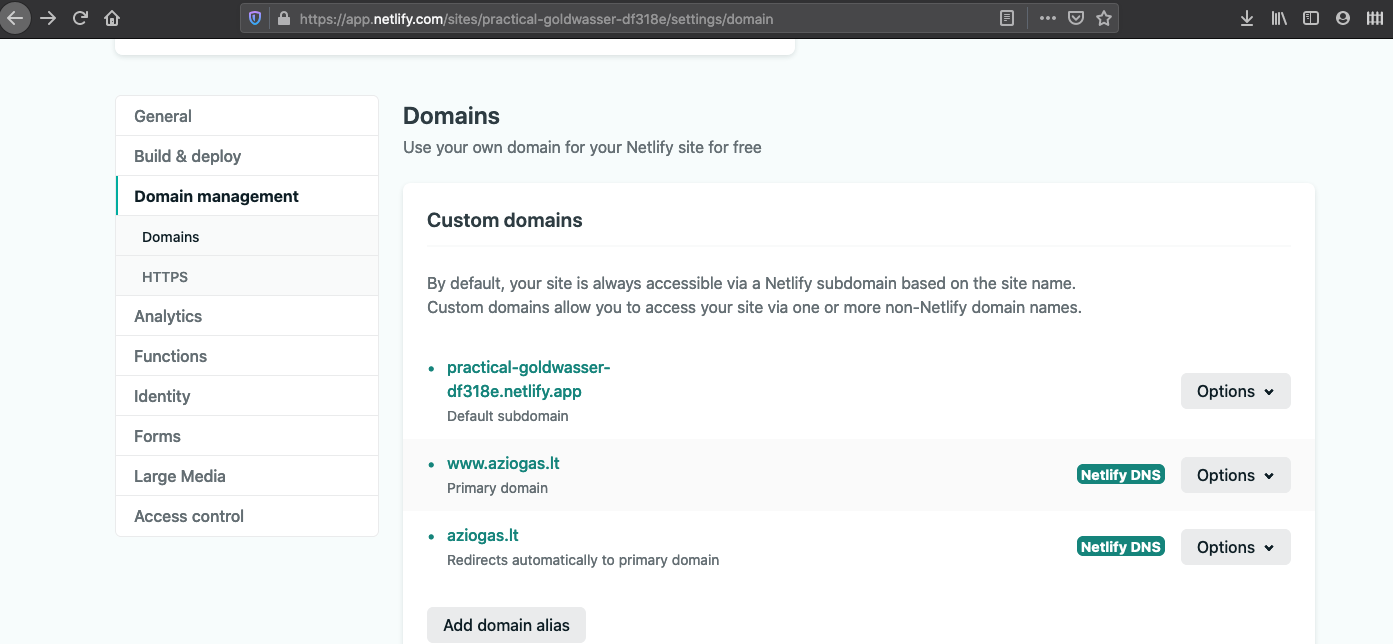
So the image would be added this way:

Before publishing, don’t forget to remove the draft: true line, otherwise the post won’t be visible.
Happy writing!
Sources
- A beginner’s guide to making new posts with Hugo https://merrimanlab.github.io/post/2020-10-15-making-posts/
- Creating new Hugo blog posts https://srdan.geek.nz/posts/friday-2nd-august-2024/
- Create new post using Hugo https://pitchumanisivan.in/posts/hugo-new-post/